Purchase Orders
Introduction
A Purchase Order (PO) is a formal document in which a buyer places an order with a vendor for specific goods. In VDH Fit, Purchase Orders are the starting point of the supply chain — every booking, shipment, and delivery traces back to a PO.
This section covers how to create and manage Purchase Orders, add line items (goods), upload documents, and track order activity.
Useful links: Technical reference
Key Concepts
| Term | Definition |
|---|---|
| Purchase Order (PO) | A document from a buyer to a vendor listing goods to be supplied. |
| Line Item | A single product entry within a PO, with its own quantity and transport details. |
| Buyer | The company that places the PO. |
| Vendor | The company that supplies the goods. |
| Final Destination | The location where the goods are ultimately delivered. |
| Origin Agent | The forwarding company that handles transport from the vendor's side. |
| Port of Origin | The port where goods are loaded for shipment. |
| Port of Destination | The port where goods are unloaded. |
| Incoterm | International trade term defining who is responsible for transport costs and risks (e.g. FOB, CIF). |
| Booking | A transport reservation created from one or more PO line items. |
| Open Qty | Quantity of a line item not yet included in any booking. |
| Booked Qty | Quantity already reserved in a booking. |
| Shipped Qty | Quantity already dispatched in a shipment. |
Business Background
Purchase Orders are created by Buyers to communicate what goods they need from their Vendors. Once a PO exists in VDH Fit, the logistics process can begin: line items are grouped into Bookings, Bookings become Shipments, and Shipments end in Deliveries.
VDH Fit gives all parties — Buyers, VDH Staff, Origin Agents, and Clients — a shared view of each PO and its progress, replacing email and phone communication with a single source of truth.
Primary users: Buyers, VDH Staff, Admins.
Read-only users: Clients, Consignees, Origin Agents (own items only).
No access: Vendors.
Feature List
| ID | Feature | Description |
|---|---|---|
| 1.1 | Purchase Order List | View all accessible POs in a paginated table. |
| 1.1.1 | Status Filters | Filter the list by PO status with one click. |
| 1.1.2 | Search | Find a PO by order number. |
| 1.1.3 | Advanced Filter | Filter by buyer, vendor, destination, tags, and more. |
| 1.1.4 | Sorting | Sort the list by any column. |
| 1.1.5 | Row Actions | Pin, share, cancel, or delete a PO from the list. |
| 1.2 | Create Purchase Order | Create a new PO from the list view. |
| 1.3 | Purchase Order Details | View all fields of a PO in a side drawer. |
| 1.3.1 | Transport Details | View transport, route, and date information. |
| 1.3.2 | Edit Purchase Order | Update PO header fields. |
| 1.4 | Line Items (Goods Tab) | View and manage the goods listed in a PO. |
| 1.4.1 | Add / Edit / Copy Line Item | Add new items or modify existing ones inline. |
| 1.4.2 | Split Line Item | Divide a line item into two separate entries. |
| 1.4.3 | Delete Line Item | Remove a line item from the PO. |
| 1.5 | Documents Tab | Upload and manage documents attached to a PO. |
| 1.6 | Activity & Notifications Tab | View change history and add internal notes. |
| 1.7 | Purchase Order Statuses | Understand what each PO status means. |
| 1.8 | Access & Permissions | Summary of what each role can do. |
1.1 Purchase Order List
Purpose: Give users a quick overview of all Purchase Orders they have access to, with the ability to filter, sort, and open any PO for details.
UI
Description
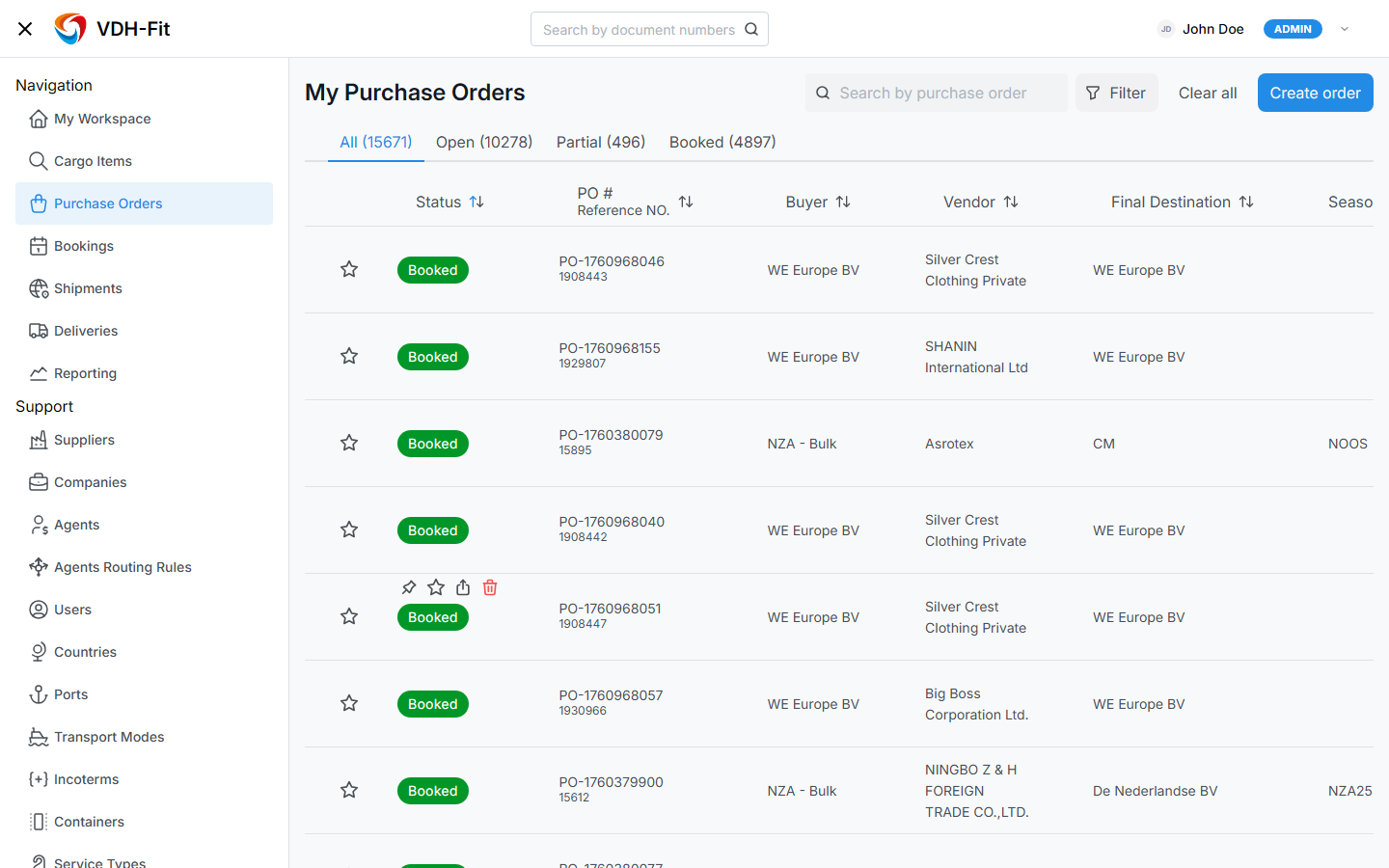
The Purchase Orders list displays all accessible POs in a paginated table. Each row shows the key fields of a PO at a glance. Clicking a row opens the PO Details drawer on the right side.
Columns
| Column | Description |
|---|---|
| Status | Color-coded badge showing the current PO status. |
| PO Number | Internal PO identifier. Click to open details. |
| Client Reference | External reference number provided by the client. |
| Buyer | The company that placed the order. |
| Vendor | The supplier. |
| Final Destination | Where the goods are delivered. |
| Tags | Category tags assigned to the order. |
| Remarks | Short notes. If text is too long, a [...] indicator opens a popup. |
Access
| Feature | Buyer | Admin / VDH Staff | Client / Consignee | Origin Agent | Vendor |
|---|---|---|---|---|---|
| 1.1.1 Status Filters | ✓ | ✓ | ✓ | ✓ | — |
| 1.1.2 Search | ✓ | ✓ | ✓ | ✓ | — |
| 1.1.3 Advanced Filter | ✓ | ✓ | ✓ | ✓ | — |
| 1.1.4 Sorting | ✓ | ✓ | ✓ | ✓ | — |
| 1.1.5 Pin / Share | ✓ | ✓ | ✓ | ✓ | — |
| 1.1.5 Cancel / Delete | Own POs | ✓ | — | — | — |
| Create PO button | ✓ | ✓ | — | — | — |
Visibility scope by role:
| Role | Which POs are visible |
|---|---|
| Buyer | POs where their company is the Buyer (own + linked companies) |
| Admin / VDH Staff | All POs |
| Client | POs linked to their client company |
| Consignee | POs with Line Items included in bookings addressed to them |
| Origin Agent | POs assigned to their agent (or containing their assigned Line Items) |
| Vendor | No access |
Details
- The list is paginated.
- Hovering over a row reveals quick action buttons (see 1.1.5 Row Actions).
- Clicking anywhere on a row opens the PO Details drawer.
1.1.1 Status Filters
Purpose: Quickly narrow the list to POs of a specific status without opening the advanced filter.
Description
A row of status tabs appears above the table: All, Open, Partial, Booked, Archived. Each tab shows the count of matching POs. Clicking a tab filters the list immediately.
Access
Same as 1.1 Purchase Order List.
1.1.2 Search
Purpose: Find a specific PO by its order number.
Description
A search field is available in the top-right area of the list. Type a PO number to filter results in real time. The search applies within the currently active status tab.
Access
Same as 1.1 Purchase Order List.
1.1.3 Advanced Filter
Purpose: Filter the list by multiple criteria at once.
Description
Click the Filter button to open a filter drawer on the right. You can filter by:
- Buyer
- Vendor
- Final Destination
- Tags
- Season
- Origin Agent
Click Clear to reset all active filters.
Access
Same as 1.1 Purchase Order List.
1.1.4 Sorting
Purpose: Reorder the list by a specific column.
Description
Click any column header to sort the list by that column. Click again to reverse the sort order. Sorting is available for all columns except Tags and Remarks.
Access
Same as 1.1 Purchase Order List.
1.1.5 Row Actions
Purpose: Perform quick actions on a PO without opening its details.
Description
Hover over any row to reveal action icons:
| Action | Description |
|---|---|
| Pin | Pin the PO to the top of your list for quick access. Click again to unpin. |
| Share | Copy a direct link to this PO. |
| Cancel | Cancel the PO. Available only to the creator (Buyer) and Admins. |
| Delete | Delete the PO. Only available if the PO has no related bookings. |
Access
| Action | Buyer (creator) | Admin / VDH Staff | Client / Consignee | Origin Agent | Vendor |
|---|---|---|---|---|---|
| Pin | ✓ | ✓ | ✓ | ✓ | — |
| Share | ✓ | ✓ | ✓ | ✓ | — |
| Cancel | ✓ | ✓ | — | — | — |
| Delete | ✓ | ✓ | — | — | — |
Details
- Delete is blocked if the PO has any Line Items with existing booking requests.
- If the PO has Line Items but no bookings, all Line Items are deleted together with the PO.
1.2 Create Purchase Order
Purpose: Allow authorized users to register a new Purchase Order in the system.
UI
Description
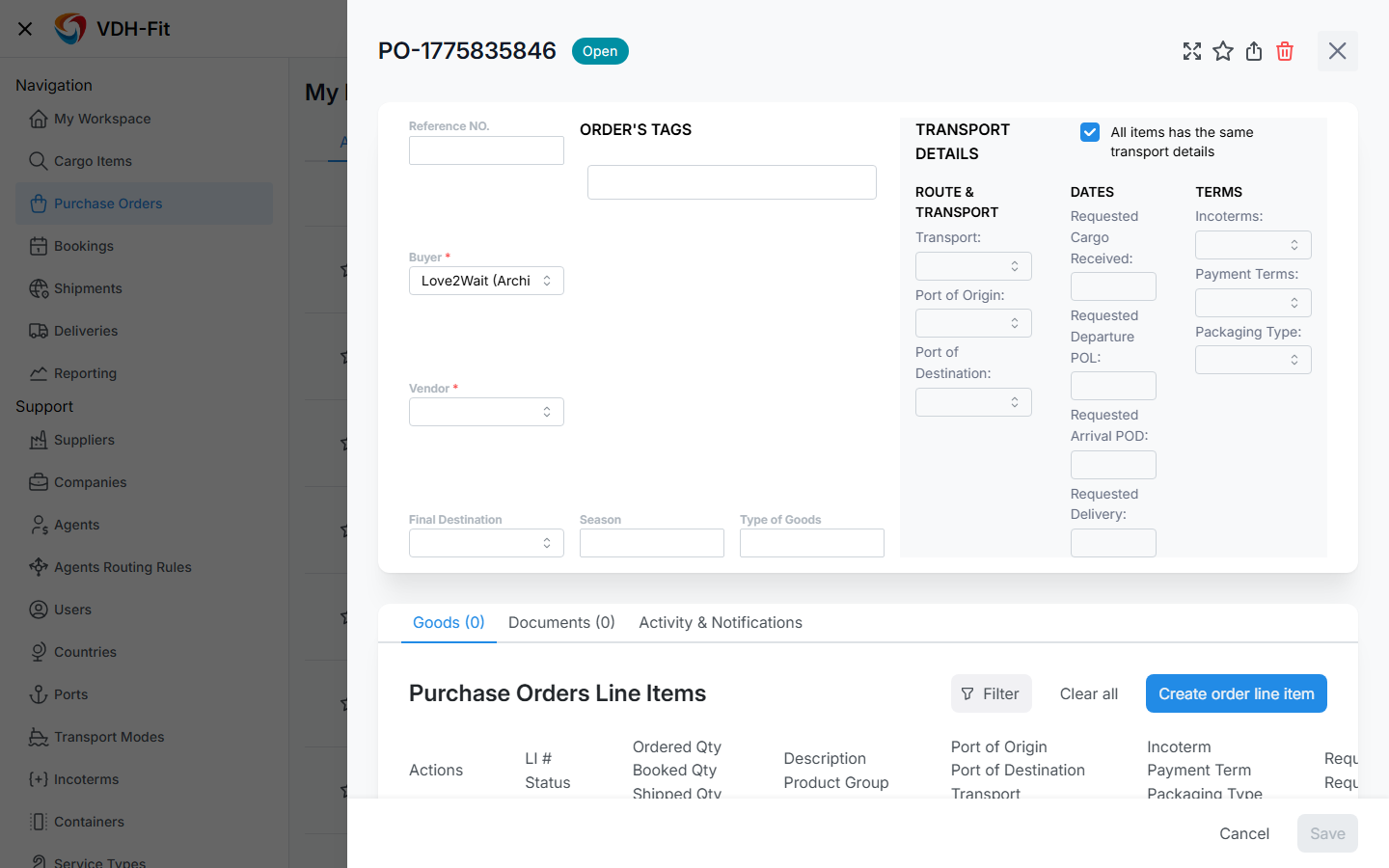
Click the Create order button in the top-right corner of the list. A new PO drawer opens in create mode. Fill in the required fields and click Save.
Required fields
| Field | Notes |
|---|---|
| Buyer | Must be selected. Auto-filled if the current user is a Buyer. |
| Vendor | Must be selected. |
Optional fields (can be filled later)
- Final Destination
- Tags, Remarks, Season, Type of Goods
- Transport Details (Transport Mode, Incoterms, Ports, Payment Terms, Packaging Type)
- Dates (Requested Departure, Cargo Ready, Arrival POD, Final Destination Arrival)
Access
| Role | Can create |
|---|---|
| Buyer | ✓ |
| Admin / VDH Staff | ✓ |
| Client / Consignee | — |
| Origin Agent | — |
| Vendor | — |
Details
- The PO Number is generated automatically and cannot be edited.
- If the user is a Buyer, the Buyer field is pre-filled with their company.
- The Transport Details section has a toggle: All items have the same transport details. When enabled, all Line Items will share the same transport settings. When disabled, transport details are set per Line Item.
- Saving without Vendor or Buyer shows a validation error.
1.3 Purchase Order Details
Purpose: Show all information about a PO in one place and allow authorized users to edit it.
UI
Description
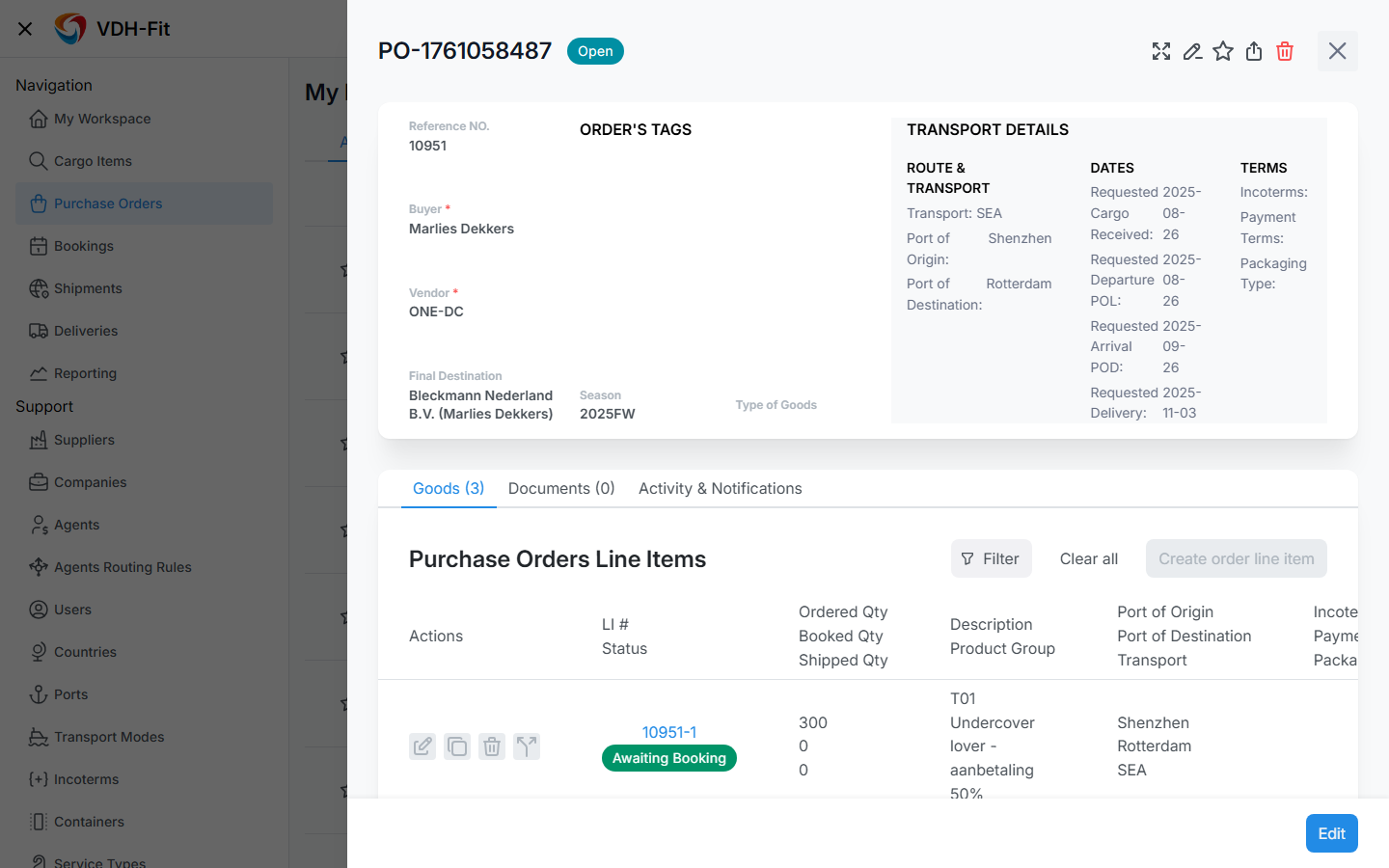
Click any row in the PO list to open the details drawer on the right side. The drawer shows the PO header, transport details, and three tabs: Goods, Documents, Activity & Notifications.
The drawer can be expanded to full screen using the expand icon in the top-right corner.
Header fields
| Field | Description |
|---|---|
| PO Number | Internal identifier, auto-generated. |
| Client Reference | External reference number. |
| Status | Current status badge (see 1.7 Statuses). |
| Buyer | The company that placed the order. |
| Vendor | The supplier. |
| Final Destination | Delivery location. |
| Tags | Category tags. |
| Season | Season or period label. |
| Type of Goods | General description of the goods. |
Access
| Role | View | Edit |
|---|---|---|
| Buyer | ✓ (own POs) | ✓ (own POs) |
| Admin / VDH Staff | ✓ | ✓ |
| Client / Consignee | ✓ | — |
| Origin Agent | ✓ (own items only) | — |
| Vendor | — | — |
1.3.1 Transport Details
Purpose: Show the logistics parameters expected for this order.
Description
The Transport Details block appears in the upper-right area of the PO Details drawer. It contains three groups:
Route & Transport
| Field | Description |
|---|---|
| Transport Mode | Expected method of transport (Sea, Air, Road, etc.). |
| Port of Origin | Port where goods are loaded. |
| Port of Destination | Port where goods are unloaded. |
Dates
| Field | Description |
|---|---|
| Requested Departure | Expected date goods leave the port of origin. |
| Cargo Received | Date cargo was received by the origin agent. |
| Arrival POD | Expected arrival date at port of destination. |
| Requested FDA Arrival | Expected arrival date at final destination. |
Terms
| Field | Description |
|---|---|
| Incoterms | Trade terms (e.g. FOB, CIF). |
| Payment Terms | Agreed payment conditions. |
| Packaging Type | How goods are packaged (e.g. pallets, boxes). |
Details
- Transport Details are shown when all Line Items share the same transport settings.
- If Line Items have different settings, a notice is displayed instead: "Items have different transport details." In this case, transport details are visible per Line Item in the Goods tab.
1.3.2 Edit Purchase Order
Purpose: Allow authorized users to update PO header and transport fields.
Description
Click the Edit button in the PO Details drawer. All editable fields become active. Make changes and click Save to confirm, or Cancel to discard.
Access
| Role | Can edit |
|---|---|
| Buyer (creator) | ✓ |
| Admin / VDH Staff | ✓ |
| Client / Consignee | — |
| Origin Agent | — |
| Vendor | — |
Details
- The PO Number cannot be changed after creation.
- Status cannot be changed manually (see 1.7 Statuses).
1.4 Line Items (Goods Tab)
Purpose: View and manage the individual goods included in a Purchase Order.
Description
The Goods tab in the PO Details drawer lists all Line Items for that PO. The tab label shows the item count, e.g. Goods (3).
Columns
| Column | Description |
|---|---|
| LI # | Buyer's internal item number. |
| Status | Current item status (Open, Partial, Booked). Set automatically. |
| Ordered Qty | Total quantity ordered. |
| Booked Qty | Quantity reserved in bookings. Updated automatically. |
| Shipped Qty | Quantity already shipped. Updated automatically. |
| Description | Product name or description. |
| Product Group | Item category or group. |
| Transport | Method of transport for this item. |
| Port of Origin | Departure port. |
| Port of Destination | Arrival port. |
| Incoterms | Trade terms for this item. |
| Payment Terms | Payment conditions. |
| Packaging Type | Packaging method. |
| Requested Departure | Expected departure date. |
| Cargo Ready Date | Date goods are ready for pickup. |
| Requested FDA Arrival | Expected final destination arrival date. |
| Origin Agent | Agent responsible for this item. Visible to VDH Staff and Admin only. |
| Tags | Item-level tags. |
| Remarks | Short item-level notes. |
Access
| Role | View | Add | Edit | Copy | Split | Delete |
|---|---|---|---|---|---|---|
| Buyer | ✓ | ✓ | ✓ | ✓ | ✓ | ✓ |
| Admin / VDH Staff | ✓ | ✓ | ✓ | ✓ | ✓ | ✓ |
| Client / Consignee | ✓ | — | — | — | — | — |
| Origin Agent | ✓ (own items) | — | — | — | — | — |
| Vendor | — | — | — | — | — | — |
1.4.1 Add / Edit / Copy Line Item
Purpose: Manage individual goods entries within a PO.
Description
Add: In edit mode, click Create order line item at the bottom of the Goods table. A new empty row appears inline — fill in the fields directly in the table.
Edit: In edit mode, click any field in a row to update it. Changes are saved when you click Save on the PO.
Copy: Click the copy icon on a row to duplicate it. The new item gets the same description, product group, tags, and quantity as the original. You can then modify the copy.
Access
| Role | Add | Edit | Copy |
|---|---|---|---|
| Buyer / Admin / VDH Staff | ✓ | ✓ | ✓ |
| Client / Consignee | — | — | — |
| Origin Agent | — | — | — |
Details
- Editing is only available when the PO is in Edit mode (after clicking the Edit button).
- Booked Qty and Shipped Qty are read-only — they update automatically when bookings and shipments are created.
- Tags and Remarks that don't fit in the column show a
[...]indicator that opens a popup.
1.4.2 Split Line Item
Purpose: Divide one Line Item into two, each with its own quantity and transport details.
Description
Use Split when part of a Line Item needs to ship under different conditions than the rest (e.g. different port, different dates).
Click the Split icon on a Line Item row. A modal opens with the following fields:
| Field | Description |
|---|---|
| Ordered Quantity | Total quantity of the original item. Read-only. |
| Open Quantity | Quantity not yet booked. Read-only. |
| Current LI Qty | Quantity to keep on the original item. Pre-filled with Booked Qty. |
| New LI Qty | Quantity for the new item. Pre-filled with Open Qty. Must be > 0. |
Click OK to confirm. The original item gets the quantity you entered in Current LI Qty. A new item is created with the New LI Qty.
Access
| Role | Can split |
|---|---|
| Buyer / Admin | ✓ |
| VDH Staff | ✓ |
| All others | — |
Details
- Split is only available in Edit mode.
- A fully booked item (Booked Qty = Ordered Qty) cannot be split.
- Current LI Qty cannot be less than the already booked quantity.
- After splitting, the cursor moves to the new item so you can edit its transport details immediately.
1.4.3 Delete Line Item
Purpose: Remove a Line Item from the PO.
Description
Click the Delete icon on a Line Item row while in Edit mode.
Behavior depends on booking status:
- No bookings: The item is permanently deleted.
- Has bookings: The Ordered Qty is reduced to the already booked quantity (Open Qty becomes 0). The item remains but can no longer be booked further.
Access
| Role | Can delete |
|---|---|
| Buyer / Admin | ✓ |
| VDH Staff | ✓ |
| All others | — |
Details
- The Delete button is inactive in View mode.
- If reducing the quantity would make Open Qty = 0 and all remaining qty is booked, the item stays visible but is effectively closed.
1.5 Documents Tab
Purpose: Store and access documents related to a Purchase Order.
UI
Description
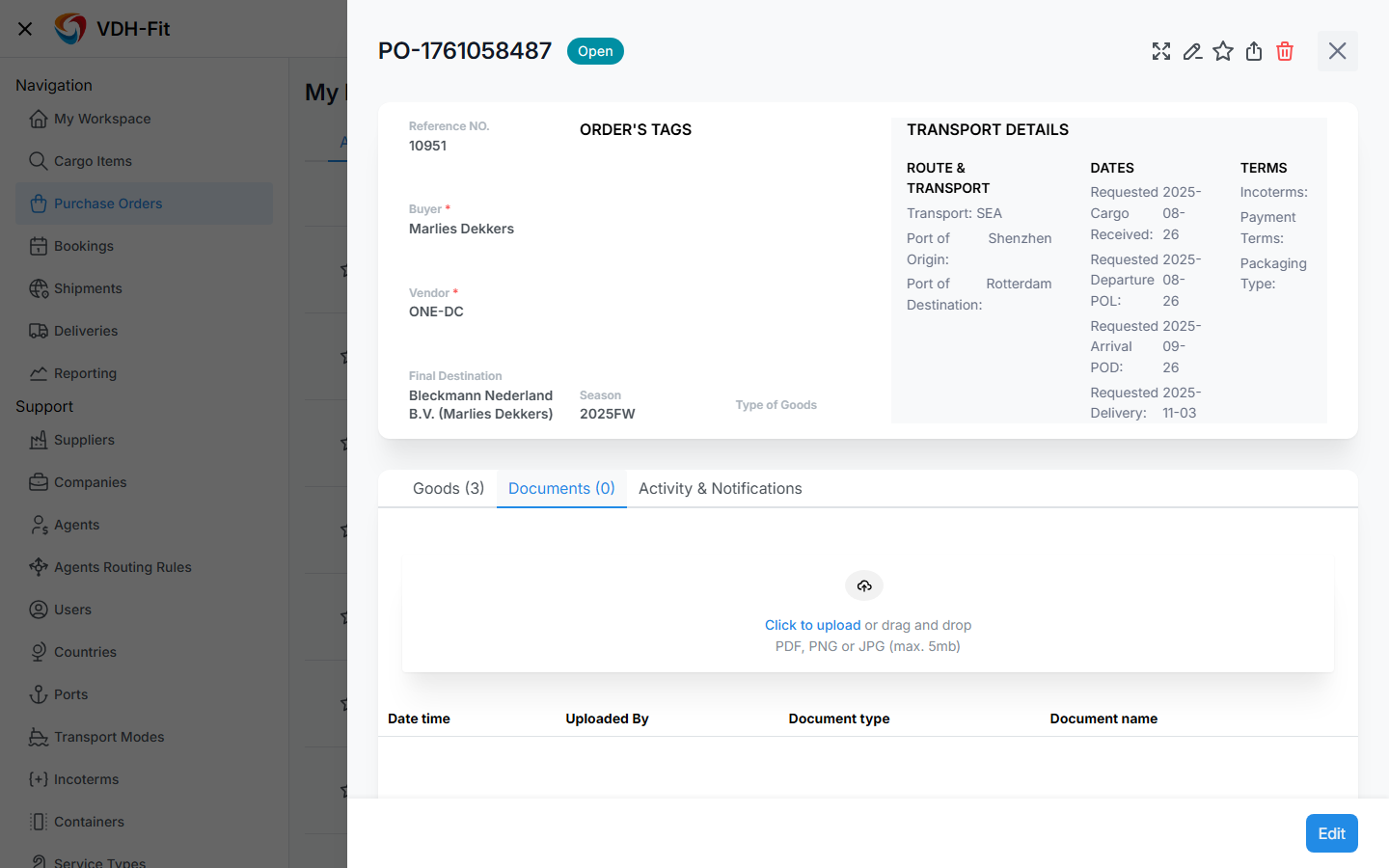
The Documents tab in the PO Details drawer shows all files attached to the PO.
Table columns:
| Column | Description |
|---|---|
| Date / Time | When the document was uploaded. |
| Uploaded By | User who uploaded the file. |
| Document Type | Type of document (e.g. Commercial Invoice, Bill of Lading). |
| Document Name | File name. Click to download. |
To upload a document:
- Click inside the upload area (drag-and-drop or click to browse).
- Select Document Type.
- Select the file (PDF, PNG, or JPG, max 5 MB).
- The file appears in the list immediately after upload.
To delete a document: Click the delete icon next to the file. Only authorized users see this icon.
Access
| Role | View | Upload | Delete |
|---|---|---|---|
| Buyer (creator) | ✓ | ✓ | ✓ |
| Admin / VDH Staff | ✓ | ✓ | ✓ |
| Client / Consignee | ✓ | — | — |
| Origin Agent | — | — | — |
| Vendor | — | — | — |
Details
- The Documents tab is not visible to Origin Agents.
1.6 Activity & Notifications Tab
Purpose: Track what has changed on a PO and leave internal notes.
UI
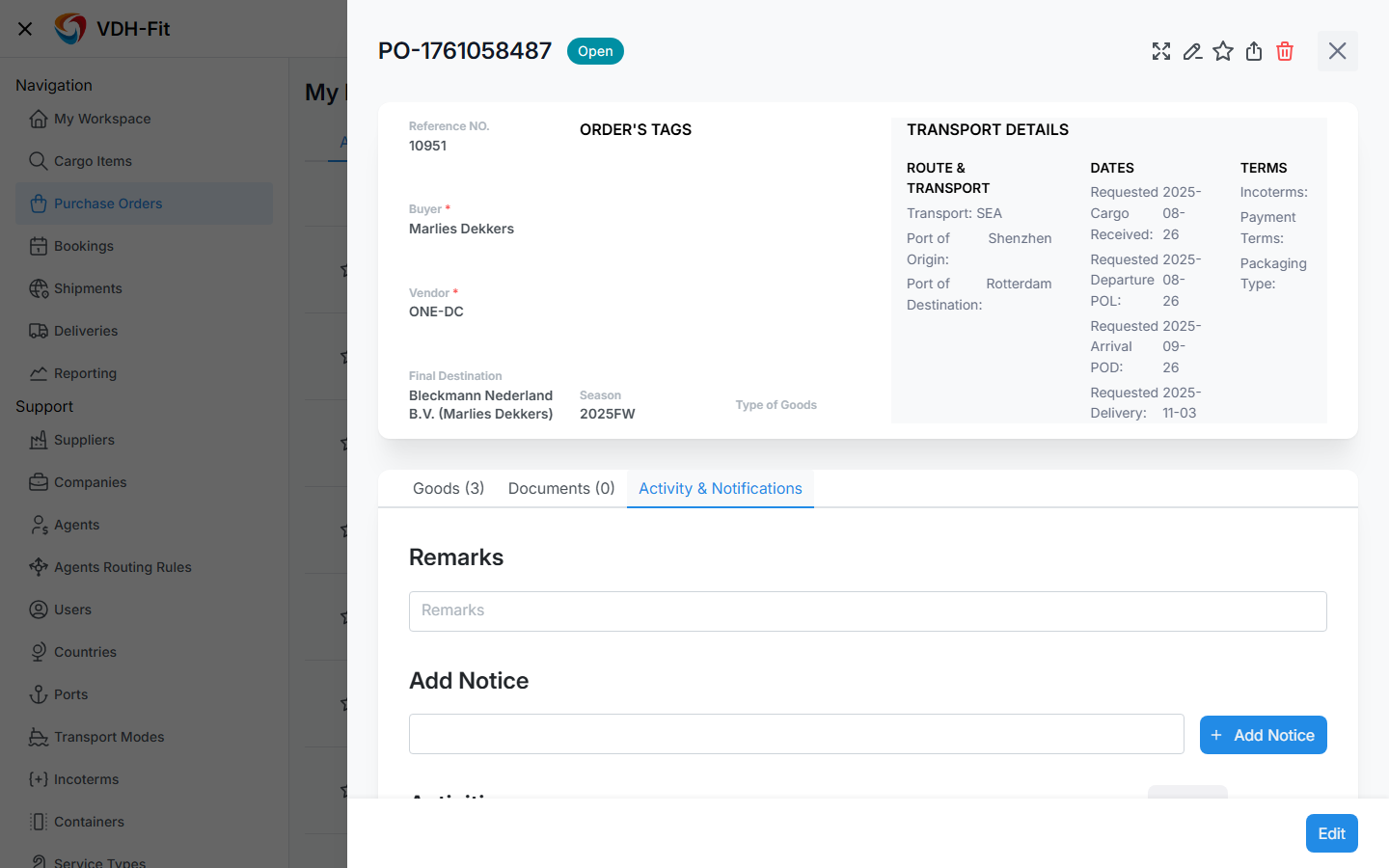
Description
The Activity & Notifications tab shows a chronological log of all changes made to the PO: creation, edits, document uploads, Line Item changes, and system notifications.
Add a note: Type a message in the Remarks field and click Add Notice. Notes are visible to all users who have access to the PO.
Access
| Role | View | Add Note |
|---|---|---|
| Buyer / Admin / VDH Staff | ✓ | ✓ |
| Client / Consignee | ✓ | — |
| Origin Agent | ✓ | — |
| Vendor | — | — |
1.7 Purchase Order Statuses
Purpose: Understand what each status means and how it changes.
Description
PO statuses are set automatically based on the state of the Line Items. They cannot be changed manually.
| Status | Meaning |
|---|---|
| Open | The PO has been created. No Line Items have been included in any booking yet, or some quantity remains open. |
| Partial | Some Line Items have been included in bookings, but not all quantity is covered. |
| Booked | All Line Items are fully included in active bookings. |
Transition rules
- Open → Partial: At least one Line Item is included in an active booking (not cancelled or deleted).
- Partial → Booked: All Line Items are fully covered by active bookings.
- Transitions happen automatically — no manual status change is possible.
Details
- Deleted POs are not visible in the list.
- A PO in Draft status (created but not saved) is not visible in the list either.
1.8 Access & Permissions
Summary of all roles across all PO features.
| Feature | Buyer | Admin / VDH Staff | Client / Consignee | Origin Agent | Vendor |
|---|---|---|---|---|---|
| View PO List | Own POs | All POs | Linked POs | POs with own items | — |
| View PO Details | ✓ | ✓ | ✓ | Own items only | — |
| Create PO | ✓ | ✓ | — | — | — |
| Edit PO | Own POs | ✓ | — | — | — |
| Cancel PO | Own POs | ✓ | — | — | — |
| Delete PO | Own POs (no bookings) | ✓ | — | — | — |
| View Line Items | ✓ | ✓ | ✓ | Own items only | — |
| Add / Edit / Copy Line Item | ✓ | ✓ | — | — | — |
| Split Line Item | ✓ | ✓ | — | — | — |
| Delete Line Item | ✓ | ✓ | — | — | — |
| View Documents Tab | ✓ | ✓ | ✓ | — | — |
| Upload Document | ✓ | ✓ | — | — | — |
| Delete Document | ✓ | ✓ | — | — | — |
| View Activity Tab | ✓ | ✓ | ✓ | ✓ | — |
| Add Note | ✓ | ✓ | — | — | — |
| Pin / Share | ✓ | ✓ | ✓ | ✓ | — |